OWC Thunderbolt 5 Dock Review: The Ultimate 1-Cable Desk Setup?
Disclosure: This post contains affiliate links. If you purchase through these links, we may earn a small commission at no extra cost to you.
TL;DR: The OWC Thunderbolt 5 Dock is a compact, 11-port powerhouse that brings next-generation 80Gbps (up to 120Gbps for displays) bandwidth to your desk. With 140W power delivery, a 2.5GbE network port, and a brilliantly placed front-facing Thunderbolt 5 port for fast SSDs, it simplifies any workflow. During our lab tests, its fanless aluminum design remained stable under heavy loads, though the lack of built-in HDMI and a 10GbE port might require some users to grab a few dongles.
- Author: Review by ComputeNest Team
The transition to Thunderbolt 5 is officially underway, promising massive bandwidth leaps and unparalleled peripheral support for modern creators and power users. At ComputeNest, our desks are constantly cluttered with external SSDs, multiple 4K/5K displays, and an array of charging cables. We’ve been searching for the ultimate single-cable solution to streamline our workflow.
When OWC released their new 11-port Thunderbolt 5 Dock, we immediately brought it into our testing lab. We’ve spent the last couple of weeks pushing this dock to its limits, transferring terabytes of video footage, running dual high-resolution displays, and testing its thermal performance. Here is our comprehensive review of what we consider one of the most reliable docks on the market right now.
First Impressions & Build Quality
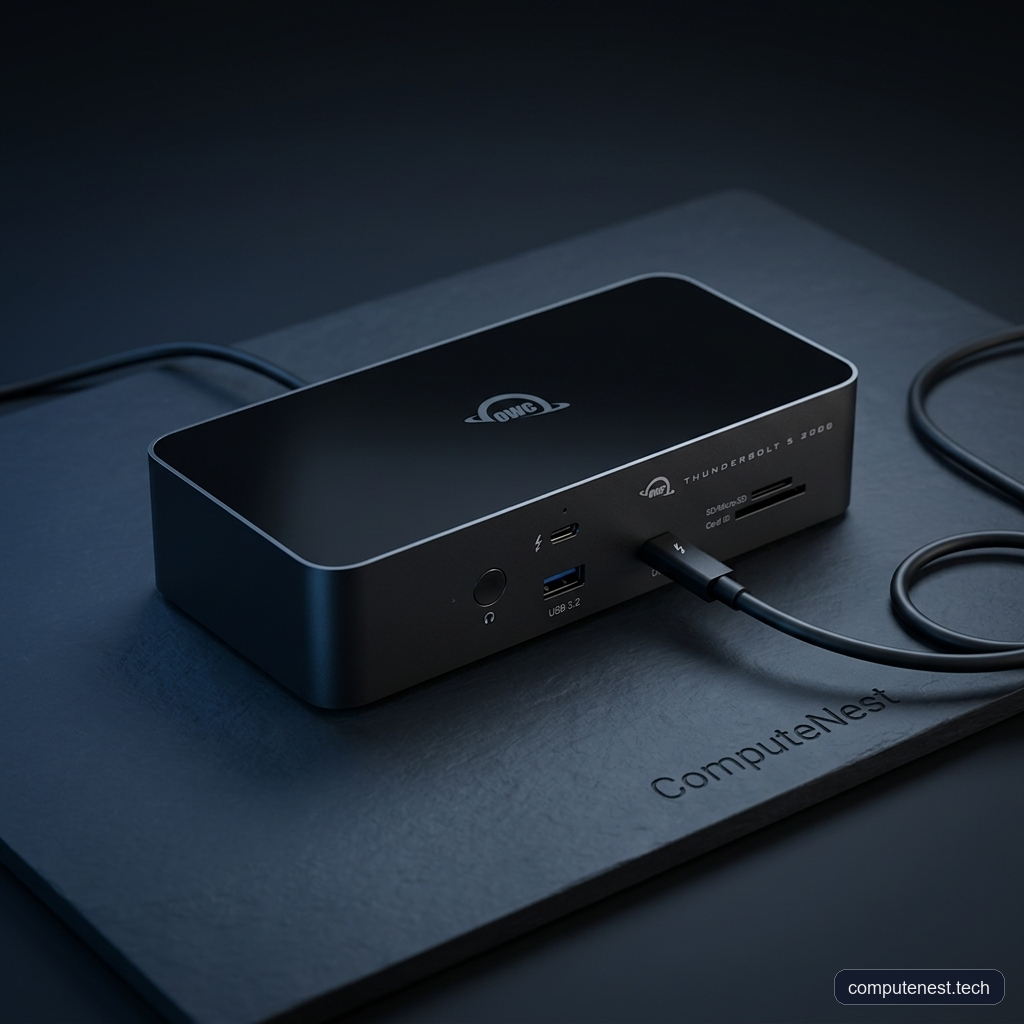
Right out of the box, the first thing we noticed about the OWC Thunderbolt 5 Dock is its surprisingly small footprint. Docks offering this level of power and connectivity are often bulky, but OWC has managed to pack 11 ports into a sleek, compact chassis that easily tucks away under a monitor or sits cleanly on a desk.
The build quality is exactly what we’ve come to expect from OWC. It features a solid aluminum body that acts as a giant heatsink, sandwiched between glossy plastic on the top and bottom. It feels premium and dense.
ℹ️ Note: The glossy plastic top does attract fingerprints and dust relatively quickly, so you might find yourself wiping it down if you prefer a pristine desk aesthetic.
The power supply included in the box is sizable, which makes sense given the 140W power delivery it needs to pass through to the host computer. We really appreciate that OWC explicitly labeled the power brick with the dock’s name—a small but incredibly helpful detail when you are digging around under a desk trying to figure out which brick goes to which device.
Port Selection & Layout: What You Get (And What You Don’t)
This dock provides 11 total ports, prioritizing Thunderbolt connectivity and simplicity over a kitchen-sink approach.
On the Rear:
* 3x Thunderbolt 5 Ports: One of these is the dedicated host port to plug into your computer. The other two are perfect for connecting multiple Apple 5K/6K displays or chaining other devices. Having three downstream Thunderbolt 5 ports on your desk makes it effortless to connect ultra-fast storage while leaving plenty of room to link complex control surfaces like the Corsair Galleon 100 SD Keyboard or daisy-chain your high-fidelity desk hardware.
* 1x 2.5 Gigabit Ethernet Port: A fantastic inclusion for accessing high-speed NAS setups or fiber internet.
* 2x USB-A Ports: One high-speed 10Gbps port and one 5Gbps port for legacy peripherals like a mouse or keyboard.
On the Front:
* 1x Thunderbolt 5 Port: This is arguably our favorite design choice. Having a full-speed Thunderbolt port on the front makes it incredibly easy to plug in fast NVMe storage (like the OWC Envoy Ultra) without reaching around the back.
* 1x USB-A (10Gbps): Perfect for quick flash drive transfers.
* SD and MicroSD Card Readers (UHS-II): Essential for our camera ingest workflows.
* 3.5mm Headset Jack
* Dedicated Power Button: Allows you to power down the entire dock and connected peripherals instantly.
The Missing Ports
While 11 ports are enough for most, there are a few notable omissions. There is no HDMI or DisplayPort connection. This means if you are using standard monitors rather than Thunderbolt/USB-C displays, you will need to purchase an active adapter or dongle.
Furthermore, given OWC’s reputation in the high-end professional AV space, we were slightly disappointed not to see a 10-Gigabit Ethernet port. 2.5GbE is great, but 10GbE would have made this an instant must-buy for server-connected video editors.
Performance & Testing: Unleashing Thunderbolt 5
Thunderbolt 5 is all about bandwidth. Where Thunderbolt 4 topped out at 40Gbps, Thunderbolt 5 doubles that to 80Gbps for standard data, and can boost up to a staggering 120Gbps for display data.
Power Delivery & Charging
During our lab testing, the 140W host charging was flawless. It easily kept our high-end MacBook Pro fully charged even while rendering heavy 4K video timelines in Premiere Pro. Additionally, the remaining Thunderbolt ports output 15W, and the USB ports output 7.5W, which was more than enough to fast-charge our phones and power our external bus-powered SSDs without any dropouts.
Data Speeds & Display Support
We connected an OWC Envoy Ultra NVMe SSD to the front Thunderbolt 5 port and hammered it with a 500GB file transfer. The speeds were blistering, maxing out the drive’s capabilities. Because of the massive 80Gbps bandwidth, we experienced absolutely no bottlenecking even when simultaneously running two 4K displays and downloading files over the 2.5GbE connection.
💡 Pro Tip: To get the absolute maximum speeds out of this dock, you need a computer with a Thunderbolt 5 controller (like a Mac with an M4 Pro/Max chip). However, it is fully backwards compatible and works perfectly with Thunderbolt 3/4 and USB4 machines, though it will throttle to the host computer’s maximum bandwidth.
Thermal Performance
Docks passing this much power and data usually get dangerously hot. The OWC dock uses a fanless design for dead-silent operation. In our stress tests—running dual monitors, 140W charging, and continuous SSD data transfers—the aluminum chassis definitely got warm to the touch, but it never crossed the threshold into feeling dangerously hot. The thermal dissipation design here is highly effective.
Software: The OWC Dock Ejector
One of the most underrated features of buying into the OWC ecosystem is their free Dock Ejector software. It lives in your menu bar (Mac or Windows) and allows you to safely eject every single drive connected to the dock with a single click.
In our testing, this saved us immense amounts of time. Instead of manually right-clicking and ejecting 3 or 4 different SSDs and SD cards before packing up our laptop, one click safely unmounts everything. It is a massive quality-of-life improvement.
Pros & Cons
What We Loved (Pros):
* Next-Gen Bandwidth: 80Gbps (up to 120Gbps) handles multiple high-res displays and fast storage simultaneously.
* 140W Power Delivery: Powerful enough to keep flagship laptops charged under heavy loads.
* Front-Facing Thunderbolt Port: A brilliant design choice for quick, high-speed SSD access.
* OWC Dock Ejector: A fantastic software utility that saves time and prevents data corruption.
Where It Falls Short (Cons):
* No Built-In Display Ports: The lack of HDMI/DisplayPort means you will need adapters for non-USB-C monitors.
* No 10GbE: A 2.5GbE port is nice, but 10GbE would be better for enterprise/server environments.
* No Built-in Storage: Unlike some competing docks, there is no slot to add an internal NVMe drive.
⚠️ Warning: If you plan to use this to output to an HDMI monitor, ensure you purchase a high-quality, active USB-C to HDMI adapter capable of handling your monitor’s resolution and refresh rate.
What We Think (The Verdict)
The OWC Thunderbolt 5 Dock doesn’t try to include every obscure port imaginable, nor does it feature built-in SSD storage. Instead, it focuses on absolute reliability, massive bandwidth, and simplicity.
In our view, the $330 investment is absolutely justified for professionals who want a rock-solid, future-proof hub. It provides everything you need to build a high-performance workstation around a single cable. If you are upgrading to an M4 Pro Mac or a new Thunderbolt 5 PC, this is the dock that will actually let you utilize that power.
Buy the OWC Thunderbolt 5 Dock on Amazon
Comparison Table: OWC Thunderbolt 5 vs. Thunderbolt 4 Docks
| Feature | OWC Thunderbolt 5 Dock | Typical Thunderbolt 4 Dock |
|---|---|---|
| Max Bandwidth | 80Gbps (Up to 120Gbps for Display) | 40Gbps |
| Host Power Delivery | Up to 140W | Usually 85W – 96W |
| Network Speed | 2.5 Gigabit Ethernet | 1 Gigabit Ethernet |
| Front TB Port | Yes (TB5) | Rare |
| Display Support | Up to Dual 6K | Up to Dual 4K |
FAQs
Do I need a Thunderbolt 5 computer to use this dock?
No! The OWC Thunderbolt 5 Dock is fully backwards compatible with Thunderbolt 4, Thunderbolt 3, USB4, and USB-C computers. However, to get the maximum 80Gbps+ speeds, your computer must support Thunderbolt 5. Otherwise, it will operate at your computer’s maximum supported speed (e.g., 40Gbps for TB4).
Can I connect an HDMI monitor to this dock?
Yes, but not directly. Since the dock only has Thunderbolt ports on the back, you will need to use a USB-C to HDMI adapter or a USB-C to DisplayPort cable to connect standard monitors.
Does it get hot during use?
The dock uses a fanless, aluminum heatsink design. It does get warm to the touch during heavy use (such as charging a laptop while transferring large files and running displays), but in our tests, it never overheated or throttled performance.
Can I use the front Thunderbolt port for displays?
Yes, the front Thunderbolt 5 port is fully featured. You can use it for high-speed NVMe storage or plug a USB-C display directly into the front of the unit.